
Get the Word Out to Your Whole Studio with Announcements
Recital sign-ups, a snow-day closure, a new masterclass date, a reminder that tuition is due. Every studio has news to share, and until now getting the word out usually meant a group email, a text thread, a note in the lesson folder, and a few reminders at the door.
Announcements gives you one place for all of it. Write it once in Practice Space, and it goes straight to your students and families: right on their Home screen, with a notification on their phone. Here's how it works and where to find it.
Writing an Announcement
Every announcement has:
- A title and message. Keep the title short and clear, since it's what families see first in the notification.
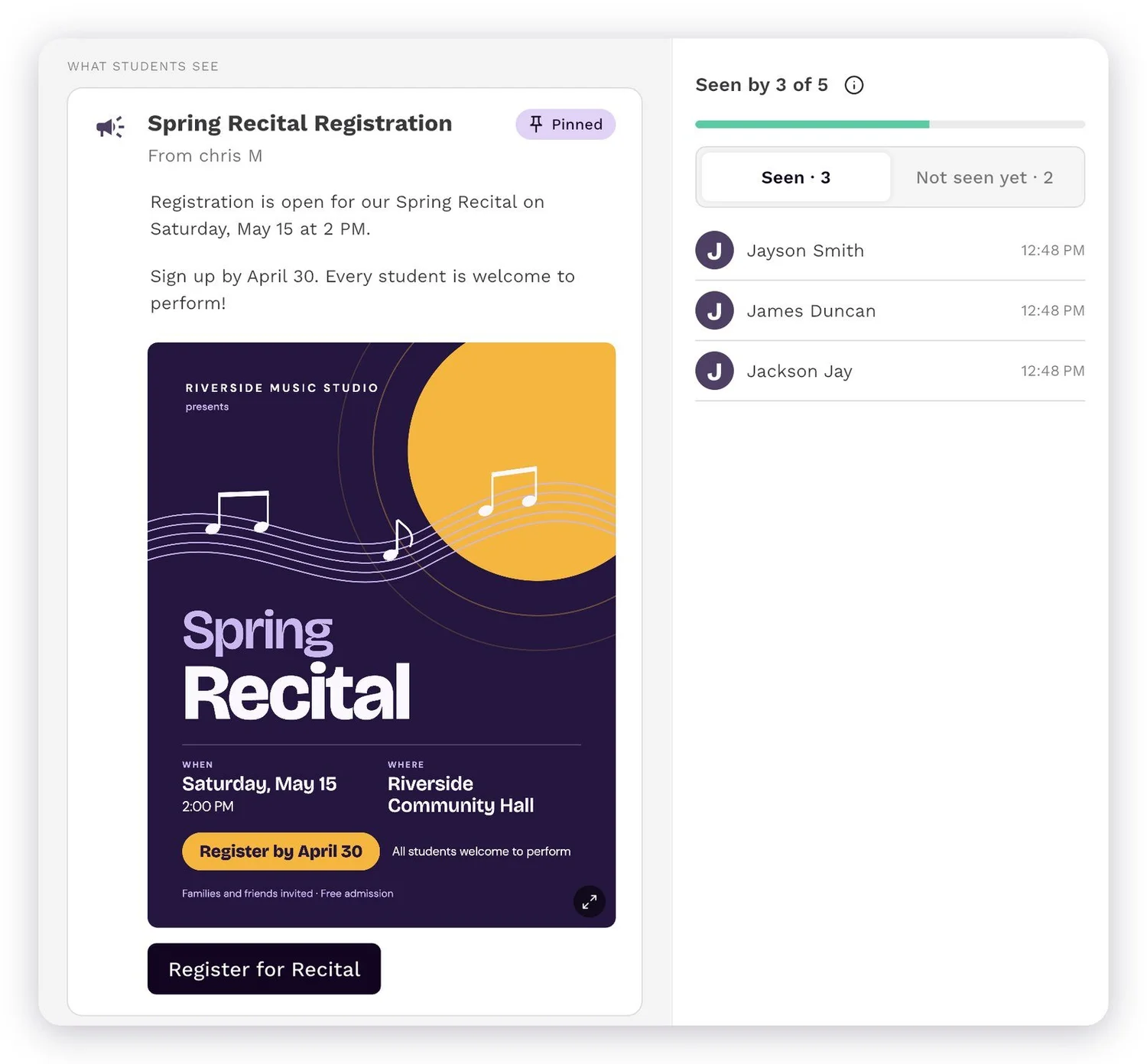
- Images or files. Add up to three images or PDFs, such as a recital flyer, a camp schedule, or a policy sheet.
- A link button. Point families to a sign-up form, a ticket page, or your studio calendar.
Choosing Who Sees It
Not every message is for everyone. You can send an announcement to:
- Your whole studio: every student and family
- A group: a class, an ensemble, or a level
- A few students: pick exactly who should get it
- Your instructors: staff news, with an optional email copy
Send Now, Schedule, or Pin
- Send now for news that can't wait.
- Schedule a time to send it, so you can write Sunday night's reminder on Friday afternoon.
- Pin to the top for the important ones. A pinned announcement stays at the top of every student's Home screen until the date you choose, and it can't be dismissed until it has been opened.
What Students and Families See
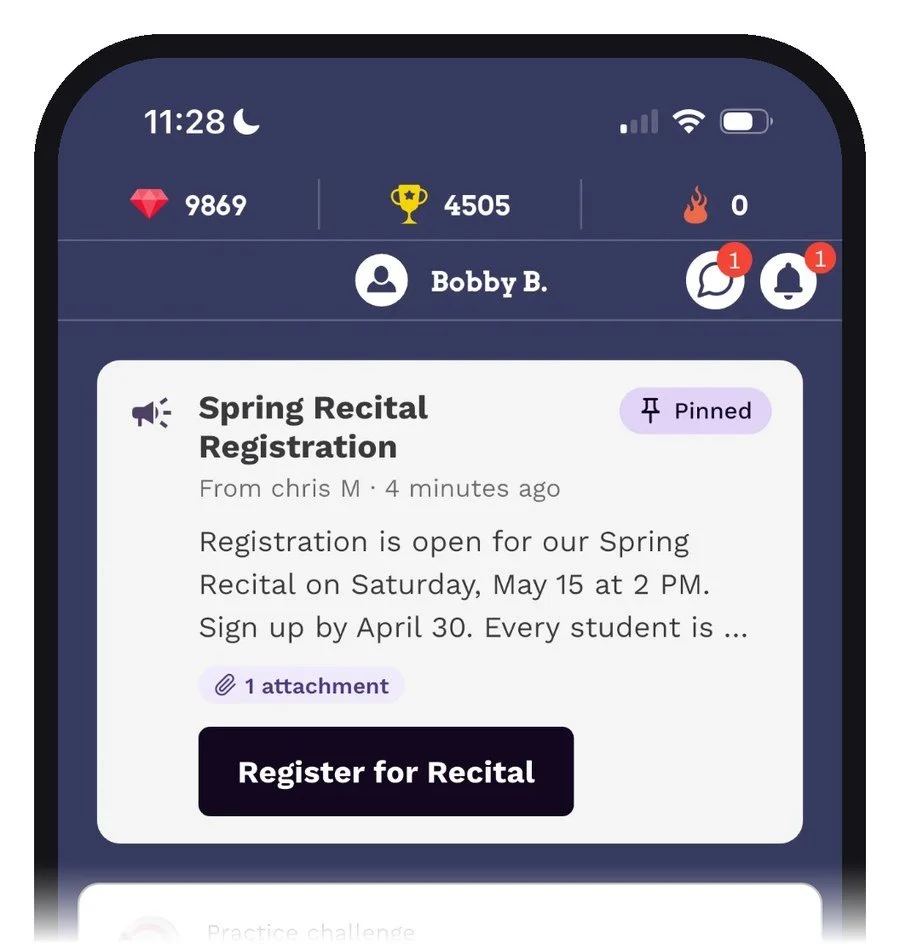
As soon as an announcement is published, families get a notification and the announcement appears at the top of their Home screen in the student app. Every announcement is also saved under Profile › Announcements, so nothing gets lost.
Announcements are one-way: students and families can read them, but they can't reply or comment. Your news stays news, and never turns into a long reply-all thread.
See Who's Seen It
Back on your Announcements board, every post shows Seen by (for example, "Seen by 18 of 24"). Open any announcement to see two lists, Seen and Not seen yet, so you know who to check in with before the deadline.
Posting from Your Phone
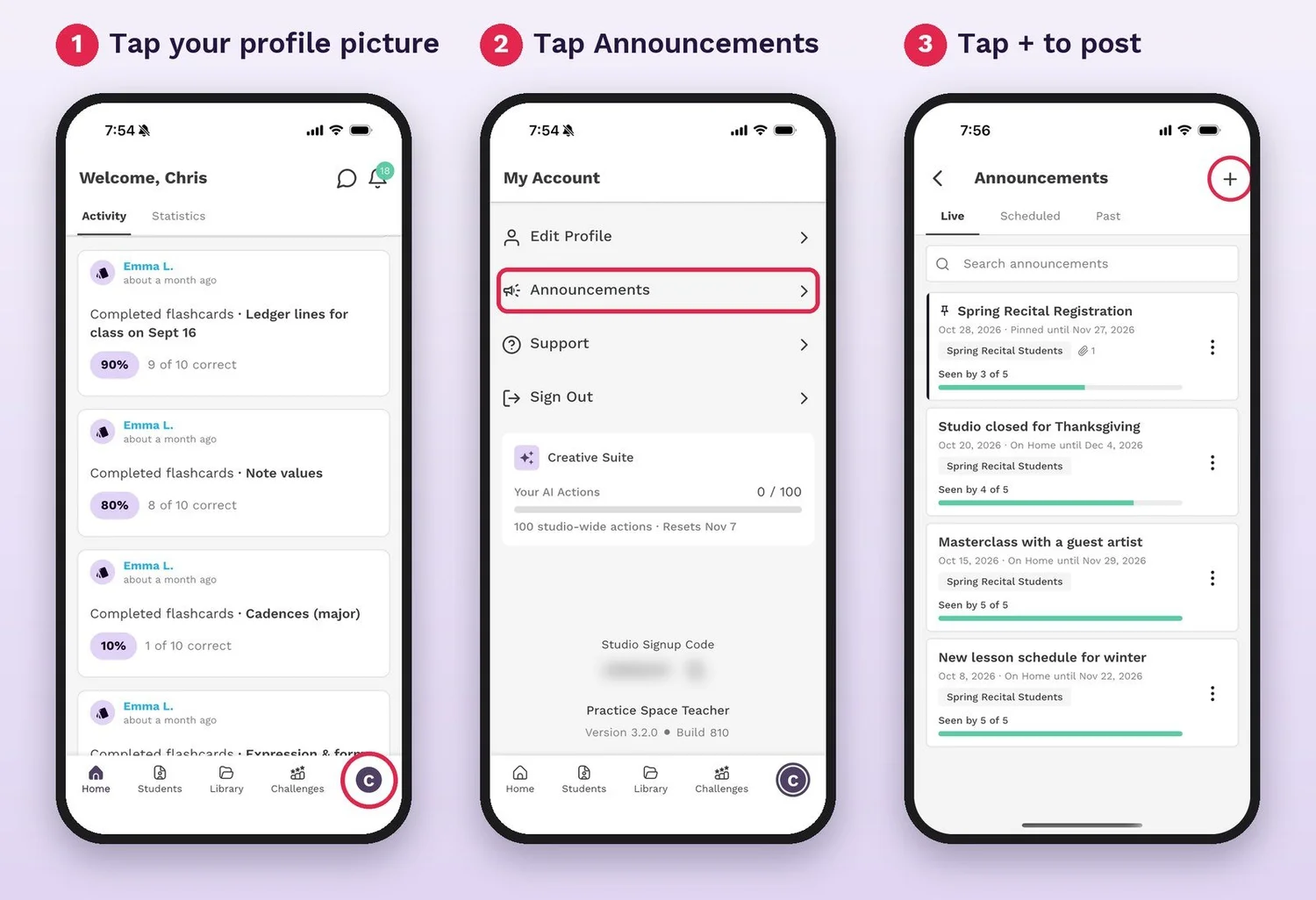
Studio owners and admins can post announcements. Instructors see the ones sent to them on their Dashboard.
Why This Matters
Clear, consistent communication is part of what makes a studio feel organized and welcoming. When families know where to find studio news, they're more likely to register on time, show up prepared, and stay connected to what their child is working on. Announcements keeps that communication in the same place students already practice, with no extra apps and no lost emails.
Announcements is available now in teacher app 3.2.1 and student app 2.2.1. Make sure you and your families are on the latest version.
Keep your whole studio in the loop.
Try Practice Space for free today